
Assignments > Lab 2: Configuring git and GitHub
Due on Wed, 09/03 @ 11:59PM. 6 Points.
Introduction
Today we will be configuring your lab repo using git and GitHub. Next week we will be working on collaboration workflows.
Here are the Lab 2 slides.
Your Tasks
1. Add your GitHub username to the spreadsheet
If you haven’t already, please register for a GitHub account, and then add your full name and your GitHub username to this spreadsheet. I will invite you to be a contributor to the relevant repos.
- Note that you will have to confirm this invitation via email.
- I recommend that you use your UNCA email account because you can get some student perks later from GitHub.
2. Set up public / private key authentication for GitHub
When accessing a remote server (including a GitHub server), a common authentication strategy involves using public and private keys. Below, you will go through the process of generating a public / private key. Your private key is for you and you alone. It is your secret, and should not be shared with anyone. Your public key, on the other hand, is typically copied to a server to which you have access.
In the workflow outlined below, all commands should be run from the command line on your local computer (not arden). If you’re a Windows user, activate WSL.
2.1. Generate a public / private key pair
To generate a public / private key pair (use WSL if you’re a Windows user):
- Type the following command:
ssh-keygen - This will generate your private key inside the
.sshfolder inside your home directory. Typically, the private key is calledid_rsaand the public key is calledid_rsa.pub. - Verify that this worked by typing
ls -la ~/.ssh. You should see both files (with today’s timestamp).
2.2. Copy your public key to GitHub
- Follow the GitHub instructions
- More on public / private keys here: https://kb.iu.edu/d/aews
3. Fork the Course Repository
In this class, we’re going to be working with various shared repositories on GitHub. For most of our labs and in-class exercises, we will be using the class-exercises-fall2025 repository. You will “fork” your own personal copy of this repository on Github that you will periodically sync with the class repo. This will be for doing individual work and activities.
Before we get into the details of various GitHub workflows, you will create a copy of the course repo – one that you own – on GitHub. To do this:
- Navigate to the course repository: https://github.com/csci338/class-exercises-fall2025
- Click the “Fork” button (towards the top of the page on the right hand side)
- Confirm where you would like the repo to be forked (choose your GitHub account).
4. Set up the course repo on your local computer
Now, on your laptop, make a copy of your repo locally (using the SSH protocol):
- Navigate to your
csci338directory on the command line. -
On GitHub, click the green “Code” button of the course repo that you just forked. Make sure that you copy the SSH version of the address:
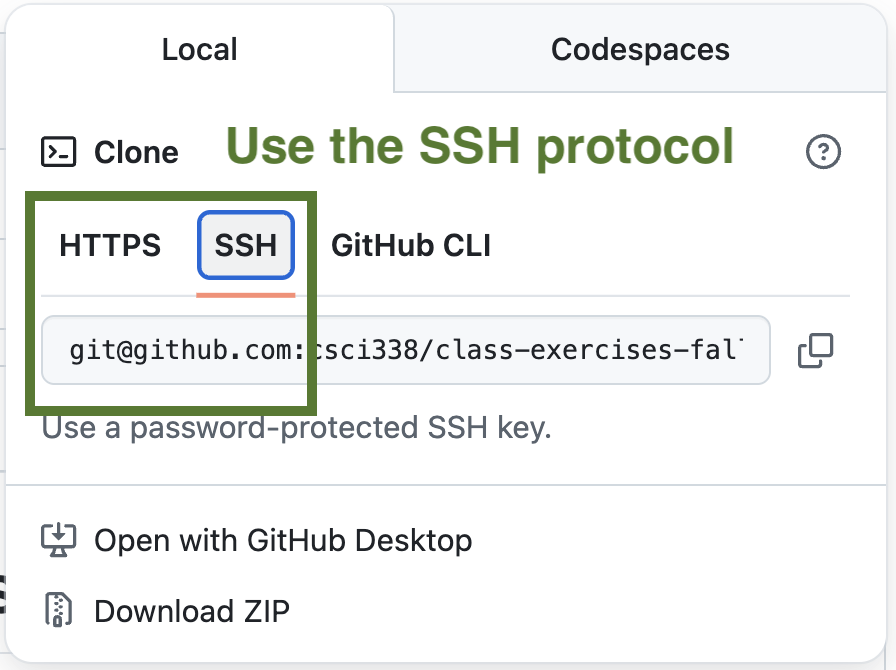
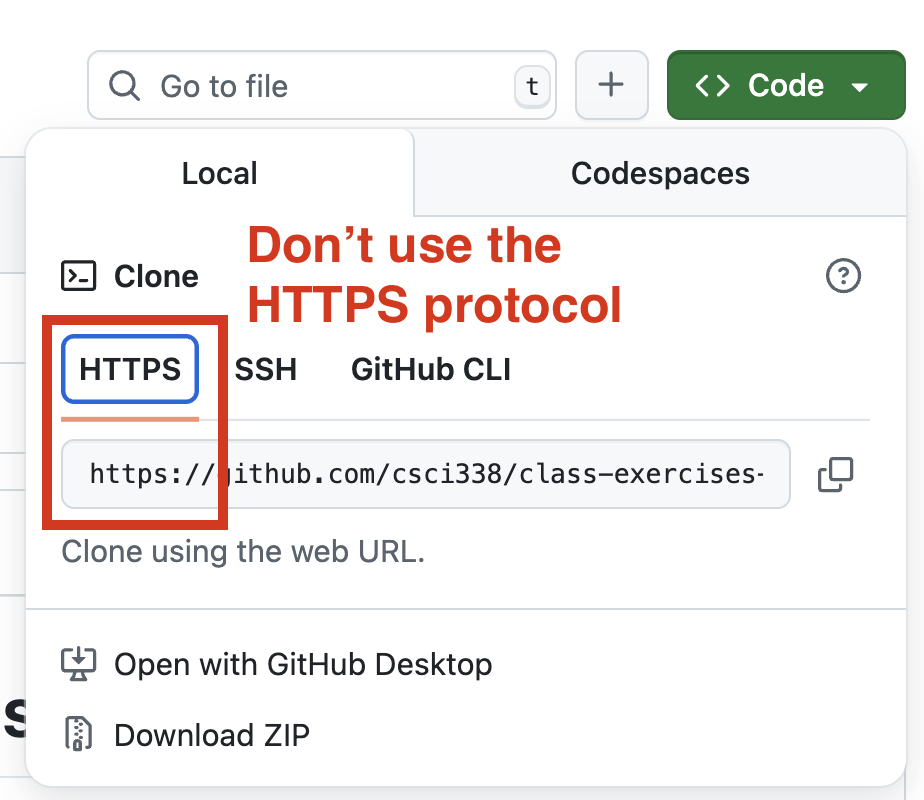
-
Within your
csci338directory, clone theclass-exercises-fall2025repo using the ssh method using the following command:git clone ADDRESS_YOU_JUST_COPIEDThe address should look something like this:
git@github.com:walter/class-exercises-fall2025.git - Navigate into the
class-exercises-fall2025folder (that was just created) - Look at commit history (
git log)
5. Make a new branch
- Create a new branch called
lab02-b- See the git cheatsheat
- Switch to the branch you just made (if you haven’t already)
- Verify that you are now on the
lab02-bbranch (see cheatsheet)
6. Write some code
- Open the entire
class-exercises-fall2025folder in VS Code. - Create a folder named
lab02 - Inside of your
lab02folder, create a text file calledContainsPair.java -
Within the
ContainsPair.javafile, implement one of the “contains pair” solutions we discussed in class (ideally the fastest one). Here’s a stub to help you:import java.util.ArrayList; import java.util.Arrays; import java.util.List; public class ContainsPair { public static void main(String[] args) { List<Integer> list1 = Arrays.asList(1, 2, 3, 2); List<Integer> list2 = Arrays.asList(5, 2, -10, 44, 90); System.out.println(ContainsPair.check(list1)); // should print true System.out.println(ContainsPair.check(list2)); // should print false } public static boolean check(List<Integer> l) { // replace this with your code: return false; } } - Compile it on the command line using the
javaccommand (e.g.,javac ContainsPair.java). See the Lecture 3 slides for potential solutions. Make sure you’re in the right directory. This should generate the compiledJava.classfile.- If you’re on WSL and
javacis not installed, you can install it using the apt package manager as follows:sudo apt install default-jdk
- If you’re on WSL and
- Run your program on the command line by typing
java ContainsPair
7. Exclude all .class files
When working with version control, you don’t want to commit compiled code, system files, passwords, or third-party libraries. Luckily, the .gitignore file makes this easy.
From the command line
- Type
git status -u. What happened?- This command should tell you all of the untracked changes you’ve made.
- Edit the
.gitignorefile by adding this line:*.class - Type
git status -uagain. What happened?
If you did it correctly, git is now ignoring your *.class file.
8. Write some code in Python
First, check if python is installed:
Windows
If you’re using WSL, python is probably installed. Open a WSL terminal and type:
python --version or py --version or python3 --version.
If any of those commands returns a 3.x python version, then you’re good to go. Otherwise, you will need to install a new version: https://www.python.org/downloads/
Mac
If you’re on a Mac, check if a 3.x version of python is installed. Open a terminal and type:
python --version or python3 --version.
If these commands aren’t recognized, or if they show an older version of python, you will need to install a new version: https://www.python.org/downloads/
Write some code
- Inside of your
lab02folder, create another text file calledcontains_pair.py -
Within the
contains_pair.pyfile, implement one of the “contains pair” solutions we discussed in class (ideally the fastest one). Here’s a stub to help you:def check(l: list): # your code goes here return False print(check([1, 2, 3, 2])) # should print True print(check([5, 2, -10, 44, 90])) # should print FalseRun / test your program on the command line by typing
python3 contains_pair.py.
On some systems, the python executable is invoked with a different alias (see below). So figure out which one you’ll need to use and make a note of it:
py contains_pair.pypython contains_pair.pypy3 contains_pair.py
New to python? Try writing the solution in Java and then asking ChatGPT to help you translate it into python. We’ll be learning more about Python in the coming weeks.
9. Stage and commit your changes
- Stage your changes using
git add .(the dot indicates that you want to stage all of the files that have been added / deleted / edited). - Commit your changes using
git commit -m "Some descriptive commit message"(e.g. “Lab 2 is completed”).
10. Push (upload) your changes to GitHub
- Push your branch to GitHub using the
git pushcommand- This command should display an error with a suggested push command (e.g.,
git push --set-upstream origin <your-branch-name>). This is telling you that there is no branch calledlab02-bin the GitHub repository.
- This command should display an error with a suggested push command (e.g.,
- Try again by typing
git push --set-upstream origin lab02-b
10. Create a pull request
Now that your code is on GitHub, you’re going to make a “Pull Request” so that I can review your code. This can be done on your version of the class-exercises-fall2025 on GitHub.
A note on your origin path
Within git, your remote origin variable holds both the address and the protocol you will be using to interact with a remote server (like GitHub). Some of you are accessing the remote server using the https protocol while others are using the ssh protocol. For the sake of simplicity, let’s all use ssh. To check your origin, type: git remote show origin.
If it prints git@github.com:<your-user-name>/class-exercises-fall2025, you don’t have to do anything. Otherwise, let’s switch up your origin protocol to ssh as follows:
git remote rm origin  # removes current references
git remote add origin git@github.com:<your-user-name>/class-exercises-fall2025.git  # adds new reference
git remote show origin  # prints the new origin (which should be the correct one).
If you get a “Please tell me who you are.” error message, please set the following environment variables on your machine (you will only have to do this once):
git config --global user.name "My Name"
git config --global user.email "my_email@gmail.com"
Please use the email you used to register with GitHub
What to Turn In
Please paste a link to your pull request in the Moodle submission box. Also, please verify that…
- You created a branch called
lab02-b. - You have a working
ContainsPair.javafile in it. - You have edited your
.gitignorefile so thatContainsPair.classis not checked into version control. - You have a working
contains_pair.pyfile in it.