Assignments > Lab 5: Understanding Package Managers

Due Wed, 09/23 at 11:59pm

Overview

In this lab you will practice package management with:

  1. Your OS package manager:
    • Mac Mac: Homebrew
    • Windows WSL or Linux Linux: Apt
  2. poetry (Python) — everyone
  3. npm (Node.js) — everyone

In addition, you will:

  1. Build a simple web crawler to extract links from a web page (as part of your Poetry practice - Part 2)
  2. Build a simple web-based React UI (as part of your npm practice - Part 3)

By the end, you should know how to install, update, remove, and manage dependencies with these tools.

Docs (optional reading):

Set up

This lab uses your class-exercises-fall2026 fork (not lab03-exercises).

  1. On GitHub: open your fork of class-exercises-fall2026 and sync it with the class repo (csci338/class-exercises-fall2026) using Sync fork / Update branch.

  2. On your computer, in your local class-exercises-fall2026 folder:

    git checkout main
    git pull
    git checkout -b lab05-b
    git branch

    After a successful git pull, you should see a new lab05 folder.

  3. Confirm git branch shows * lab05-b.

You will do the package-manager work inside class-exercises-fall2026/lab05. As you go, answer the questions in lab05/answers.md.

Before moving on

I am inside class-exercises-fall2026 on branch lab05-b
The lab05 folder exists (with answers.md and node-demo)

1. Operating System Package Manager

1.1. Mac Homebrew (Mac only)

Windows Linux If you are a Windows or Linux user, skip this section and jump to §1.2 Apt.

Homebrew is a package manager for macOS that simplifies installing software.

Install a package

  1. Open a terminal and check whether brew is installed:

    brew
  2. If Homebrew is not installed, install it from https://brew.sh/:

    /bin/bash -c "$(curl -fsSL https://raw.githubusercontent.com/Homebrew/install/HEAD/install.sh)"
  3. Install wget:

    brew install wget
  4. Verify:

    wget --version
  5. Download a file into your current directory:

    wget https://www.google.com

    If it worked, index.html appears. View it with cat, then remove it with rm.

  6. List packages Homebrew manages:

    brew list

Update and remove packages

  1. Update Homebrew:

    brew update
  2. Uninstall wget:

    brew uninstall wget
  3. Confirm it is gone (this should error):

    wget https://www.google.com
  4. Reinstall wget:

    brew install wget
  5. Confirm it works again, then delete the downloaded index.html.

Before moving on

I installed wget (Mac)

1.2. Windows Linux Apt (WSL or Linux only)

Mac If you are a Mac user, skip this section (but make sure you completed §1.1 Homebrew).

APT is the package manager used by Debian-based Linux (for example, Ubuntu in WSL).

Install a package

  1. Open a terminal in a Debian-based Linux environment (Windows WSL Ubuntu, or Linux a native Linux shell).

  2. Update the local package index:

    sudo apt-get update
  3. Install curl:

    sudo apt-get install curl
  4. Verify:

    curl --version
  5. Save the Google homepage:

    curl https://www.google.com > google.html

    If it worked, google.html appears. View it with cat, then remove it with rm.

Update and remove packages

  1. Upgrade installed packages:

    sudo apt-get upgrade
  2. Remove curl:

    sudo apt-get remove curl
  3. Confirm it is gone (this should error):

    curl https://www.google.com > google.html
  4. Reinstall curl:

    sudo apt-get install curl
  5. Confirm it works again, then delete google.html.

Before moving on

I installed curl (WSL / Linux)

2. Poetry (Python)

Poetry manages dependencies for Python projects.

2.1 Create a Poetry project
  1. Confirm you are on lab05-b (git branch). If not, return to Set up.

  2. Check whether Poetry is installed:

    poetry
  3. If it is not installed:

    curl -sSL https://install.python-poetry.org | python3 -

    If this fails on a Mac, you may need SSL certificates:

    • Finder → Applications → Python
    • Double-click the Certificates script
    • Run the curl install command again
  4. Verify:

    poetry --version
    • If you get a “command not found” error, add Poetry to your PATH (see common fixes online), for example:

      export PATH="$HOME/.local/bin:$PATH"
  5. Go to your lab folder and create a project:

    cd class-exercises-fall2026/lab05
    poetry new poetry-demo
    cd poetry-demo

    Your tree should look like:

    class-exercises-fall2026/
      lab05/
        answers.md
        node-demo/
        poetry-demo/
2.2 Add a dependency
  1. Add requests:

    poetry add requests
  2. Confirm it appears in pyproject.toml and is installed:

    poetry show
2.3 Run code in the virtual environment
  1. Create lab05-experiments.py inside poetry-demo with this starter code:

    import requests
    
    def main():
        print("hello world")
        # user_agent makes it seem like the request is coming from a web browser (versus a bot)
        user_agent = {'User-agent': 'Googlebot/2.1'}
        response = requests.get("https://new.cs.unca.edu/", headers=user_agent)
        print(response.content)
    
    if __name__ == "__main__":
        main()
  2. Run it inside Poetry’s environment:

    poetry run python lab05-experiments.py

    You should see HTML from the CS homepage.

  3. Run the same file outside the environment:

    python3 lab05-experiments.py

    You should get an error because requests is not installed for system Python.

2.4 Install Beautiful Soup and extract links

Build a small crawler that prints every link on https://new.cs.unca.edu/.

  1. Install bs4 with Poetry.
  2. Update main in lab05-experiments.py so it prints only the URLs of links on that page.

If it works, you should see something like (about 85 links):

https://unca.edu
https://new.unca.edu/admission/apply/
/
https://new.cs.unca.edu/our-mission/
https://new.cs.unca.edu/our-programs/
https://new.cs.unca.edu/computer-systems-major/
...

Hints:

  • Article: Extracting all links with BeautifulSoup

  • Import:

    from bs4 import BeautifulSoup
  • Parse HTML:

    soup = BeautifulSoup(response.content, 'html.parser')
  • Use BeautifulSoup helpers to collect links. You may ask Google or ChatGPT: “How do I extract URLs using Beautiful Soup?”

Optional readiness extension (Practice)

After the basic crawler works, choose one:

  1. Deduplicate the links while preserving their original order.
  2. Count how many links point to each domain using a Python dictionary.
  3. Filter the output to include only links whose domain ends in unca.edu.

Write at least two small tests for the transformation logic using a hand-written list of URLs; do not make your tests depend on the live website. In a comment, name the Java collection you would use for the same algorithm and explain why.

2.5 Remove and re-add dependencies
  1. Remove the packages:

    poetry remove requests
    poetry remove bs4
  2. Run again and notice what happens:

    poetry run python lab05-experiments.py
  3. Add them back:

    poetry add requests
    poetry add bs4
  4. Run again and notice what happens:

    poetry run python lab05-experiments.py

Before moving on

poetry run python lab05-experiments.py prints the CS homepage links
I saw the error outside the Poetry environment (system python3)
I removed and re-added requests / bs4 and observed what happened

3. npm (Node.js)

npm is the default package manager for Node.js.

3.1 Install Node.js (if needed)

Check your version:

node -v
  • If Node is missing, install it (Mac or WSL steps below).
  • If your version is less than 18, talk to Sarah.
  • If Node is already ≥ 18, skip to §3.2.

Mac Mac

brew install node
node -v

Windows Linux Ubuntu / WSL

apt’s Node package is often outdated, so install nvm, then Node:

sudo apt-get install -y curl
curl -o- https://raw.githubusercontent.com/nvm-sh/nvm/v0.40.1/install.sh | bash

Restart your WSL terminal, then:

nvm install node
node -v

Source: Installing Node on WSL / Mac / Ubuntu

3.2 Initialize a Node.js project
  1. Go to the starter folder:

    cd class-exercises-fall2026/lab05/node-demo

    There are already React starter files here; dependencies are not installed yet.

  2. Initialize npm:

    npm init -y
  3. Confirm package.json was created.

3.3 Install React and Vite
  1. Install packages:

    npm install react react-dom vite
  2. Confirm node_modules/, package.json, and package-lock.json updated.

  3. In package.json, replace the entire "scripts" entry with:

    "scripts": {
        "start": "vite",
        "build": "vite build",
        "serve": "vite preview"
    },
  4. From node-demo, start the app:

    npm start
  5. Open http://localhost:5173/. You should see Hello world!

3.4 Add Ant Design and a modal
  1. Stop the Vite process (Control + C).

  2. Install Ant Design:

    npm install antd
  3. Replace src/App.jsx with:

    import React, { useState } from "react";
    import { Button, Modal } from "antd";
    const App = () => {
        const [isModalOpen, setIsModalOpen] = useState(false);
        const showModal = () => {
            setIsModalOpen(true);
        };
        const handleOk = () => {
            setIsModalOpen(false);
        };
        const handleCancel = () => {
            setIsModalOpen(false);
        };
        return (
            <>
                <Button type="primary" onClick={showModal}>
                    Open Modal
                </Button>
                <Modal
                    title="Basic Modal"
                    open={isModalOpen}
                    onOk={handleOk}
                    onCancel={handleCancel}
                >
                    <img
                        alt="example"
                        src="https://picsum.photos/400/300"
                        width="400"
                        height="300"
                        style={
                            {
                                width: "100%",
                            }
                        }
                    />
                    <p>Some contents...</p>
                    <p>Some contents...</p>
                    <p>Some contents...</p>
                </Modal>
            </>
        );
    };
    export default App;
  4. Start again:

    npm start
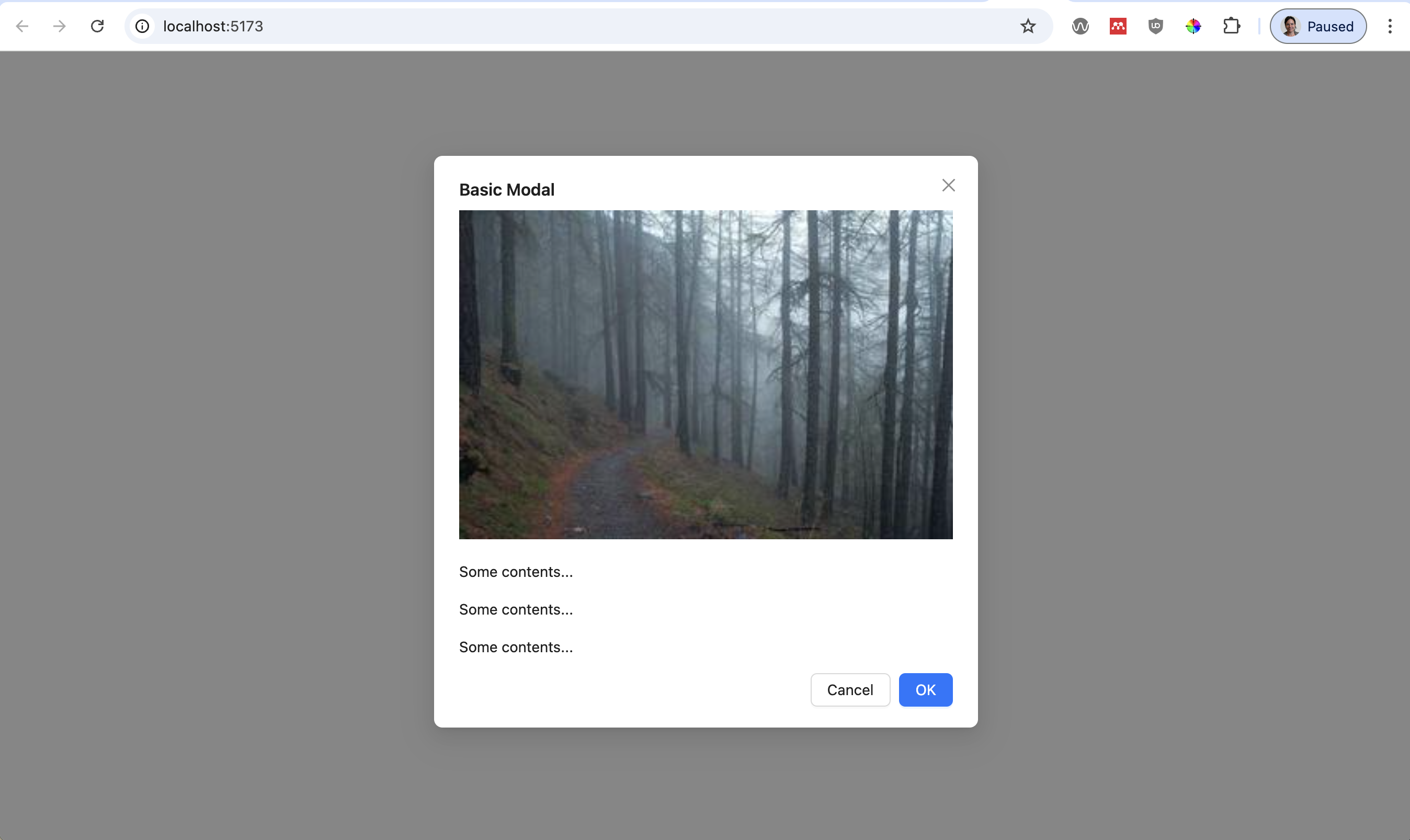
  5. Open http://localhost:5173/. You should see a modal:

Building modals from scratch is tedious; design-system packages like Ant Design let you reuse polished components.

Before moving on

npm start shows Hello world! at localhost:5173 before the Ant Design change
After adding antd, the Open Modal button works
lab05/answers.md is filled in

What to Turn In

Confirm all of the following:

I completed Part 1 with my OS package manager (brew or apt-get)
My Poetry app in lab05/poetry-demo extracts and prints URLs from the UNCA CS homepage
My React app in lab05/node-demo shows the Ant Design modal
I answered every question in lab05/answers.md

Then:

  1. Stage, commit, and push branch lab05-b of class-exercises-fall2026 to GitHub.
  2. Open a Pull Request from lab05-b into your main.
  3. Merge your lab05-b branch into main.
  4. Paste a link to your closed pull request into the Lab 05 assignment on Canvas.
Loading quiz...

UNC Asheville Department of Computer Science